On this page
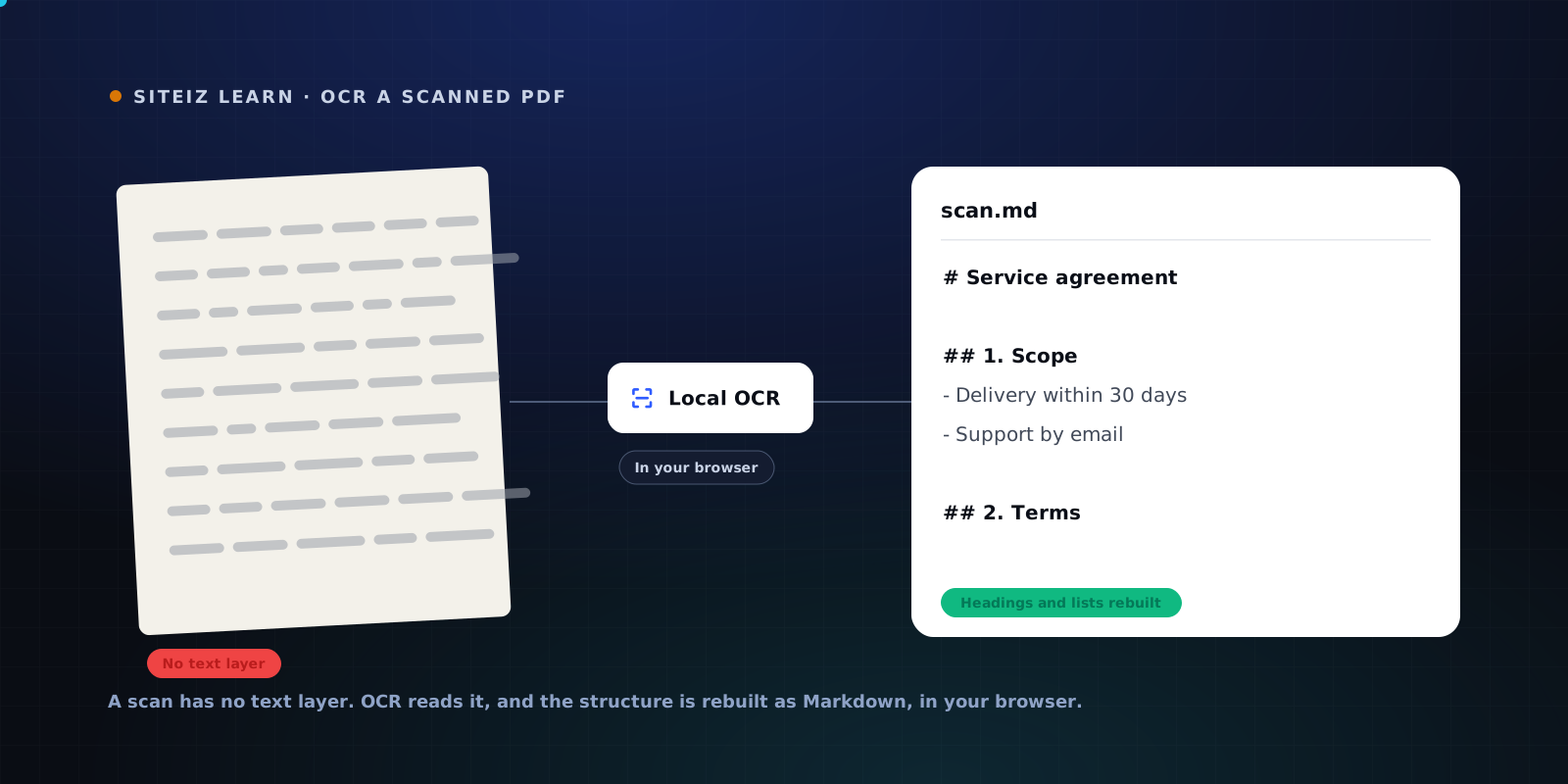
A scanned PDF is a stack of photographs in a PDF wrapper. There is no text inside it, only pixels that look like text to you. That is why dropping one into an ordinary converter returns an empty file, and why the fix is optical character recognition rather than a better parser.
First, confirm it is actually a scan
Two seconds of checking saves you from solving the wrong problem.
Open the PDF and try to select a sentence with your cursor. If words highlight one at a time, the document has a text layer and needs no OCR at all. If your cursor draws a rectangle across the page, you are selecting an image.
The same test in one step: press Ctrl+F or Cmd+F and search for a word you can plainly see on the page. No result means no text layer.
Mixed documents are common and easy to miss. Annual reports often have native text for most pages and scanned signature pages, certificates, or appendices in the middle. A converter that only handles one or the other silently drops the rest.
What OCR does, and what it cannot do
OCR reads a page image and predicts which characters the shapes represent, along with where each one sits on the page. That prediction is very good on clean printed text and degrades in ways worth knowing before you trust the output.
It handles well: high-resolution scans of ordinary printed documents, standard typefaces, black text on white, and straight pages.
It struggles with: low-resolution faxes, handwriting, text over photographs or watermarks, decorative or condensed typefaces, heavily skewed pages, and dense multilingual text in scripts it was not tuned for.
Nothing here is a bug to be fixed with a setting. OCR is inference over pixels, which means the output needs a human read before it goes anywhere that matters. Proofread names, figures, dates, and anything legal.
Getting structured Markdown, not a wall of text
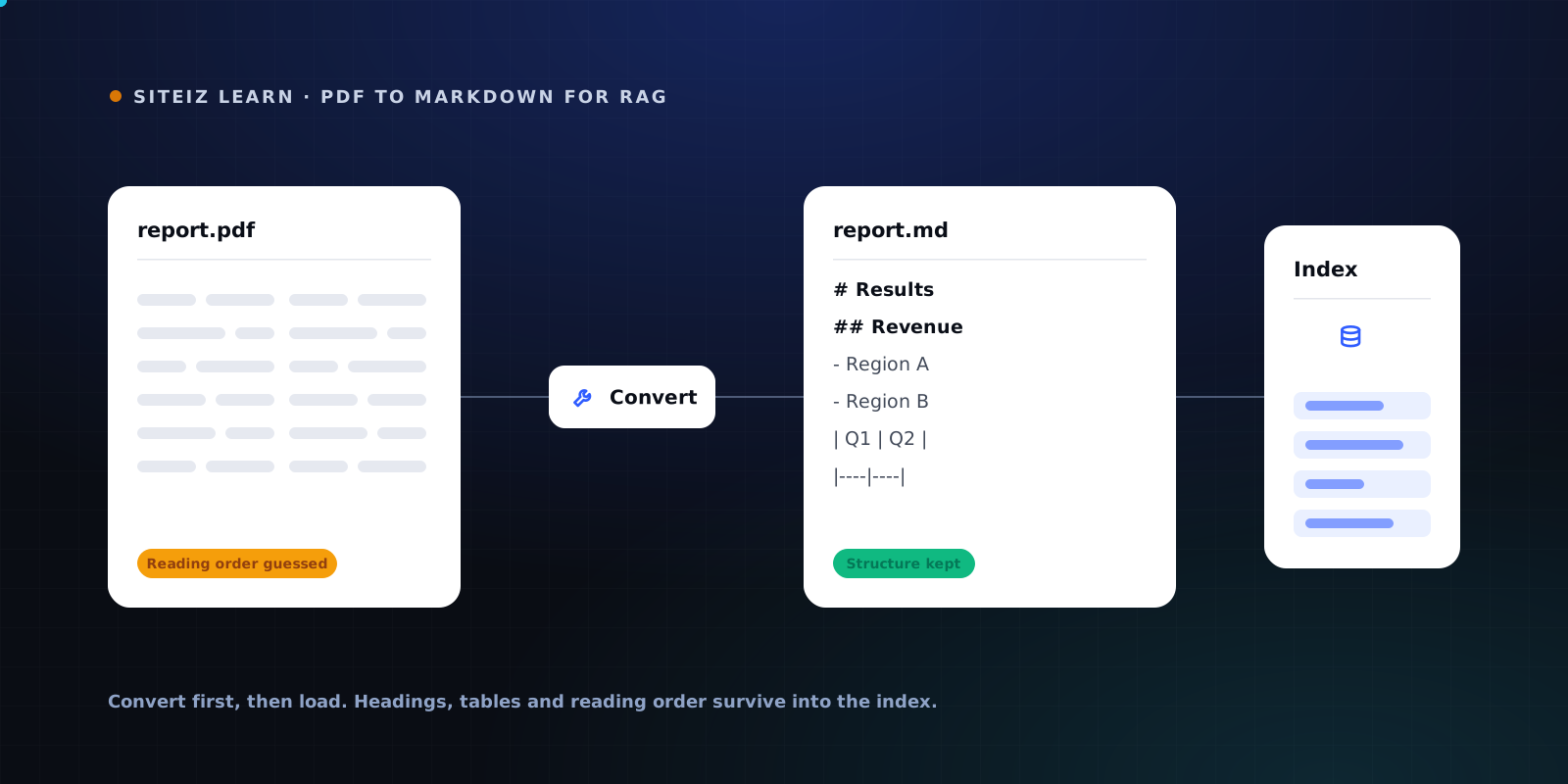
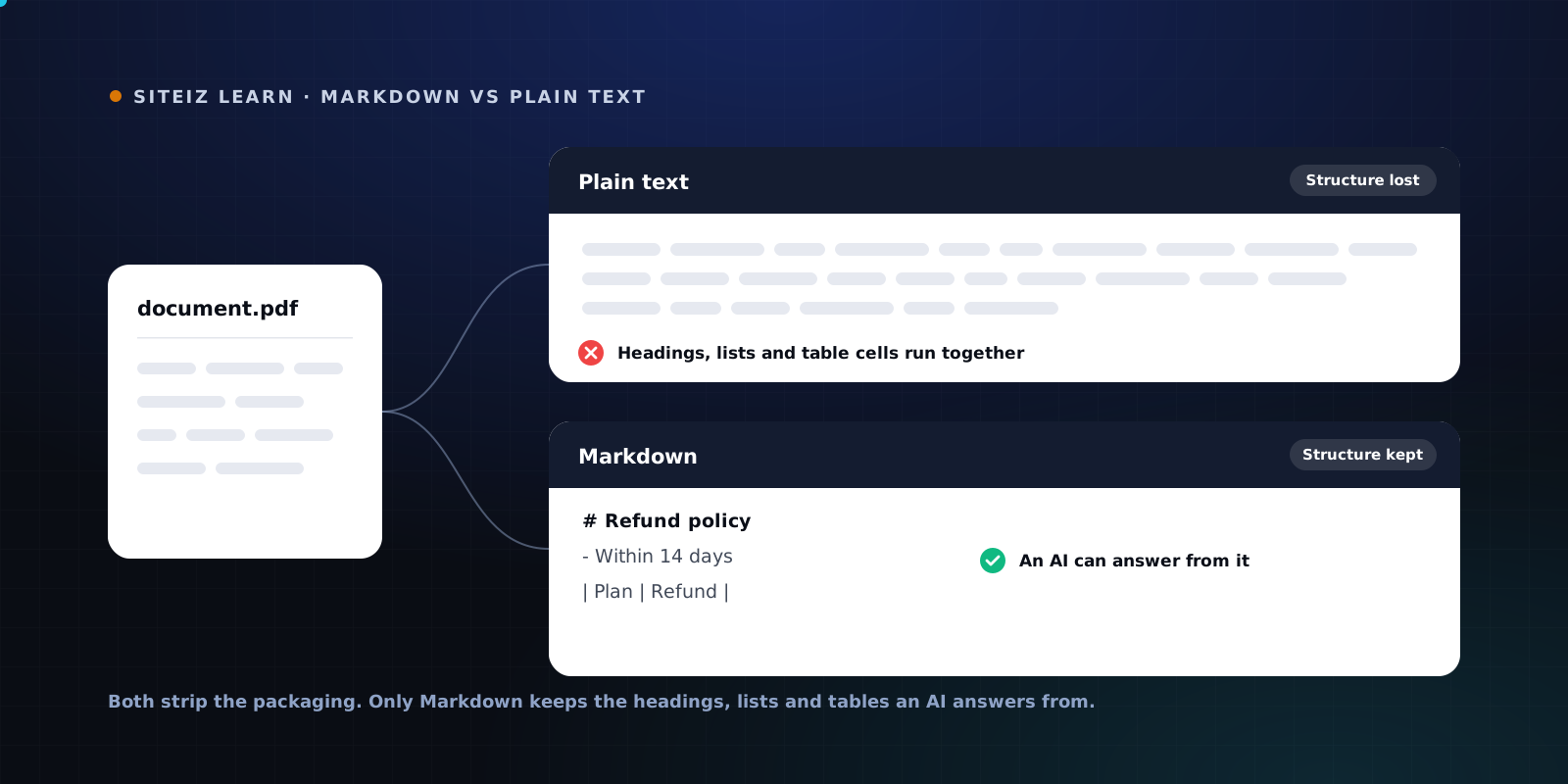
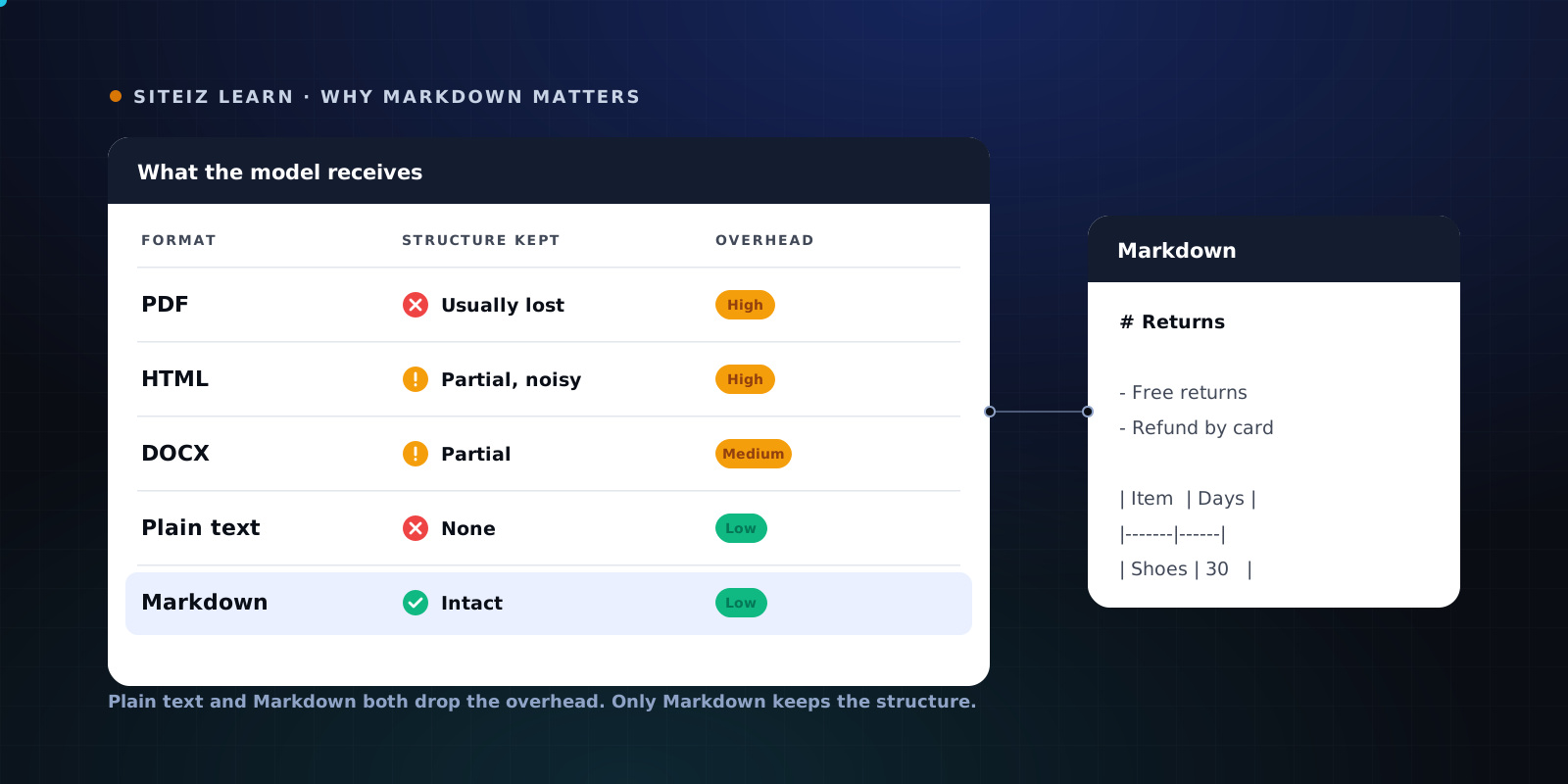
Recognising characters is only half the job. A stream of recognised words with no headings, lists, or tables is barely more useful to an AI system than the image was, because structure is what a model uses to understand a document.
The step that matters is what happens after recognition: using the position of every recognised word to rebuild reading order, detect headings by size and weight, and reconstruct table grids from alignment. That is the difference between OCR output you can index and OCR output you have to re-edit by hand.
The Siteiz PDF to Markdown converter detects scanned and image-only pages automatically, runs OCR locally as WebAssembly, and rebuilds the structure from the recognised layout. Mixed documents are handled page by page, so native pages use their text layer and only the scanned pages go through OCR.
Scanned pages are detected automatically and read with local OCR, then rebuilt as structured Markdown. The file is read from your disk into the browser tab and never leaves your device. Text PDFs are free; OCR is a 99 kr pass for 24 hours, with nothing renewing.
Convert a scanned PDF →Why local OCR matters for the documents you actually scan
Think about what gets scanned in practice: signed contracts, invoices, medical and legal correspondence, identity paperwork, board minutes, archived personnel files. The scanning happens precisely because the document is an original that someone signed or stamped.
Those are the documents you least want to hand to a third-party API for processing. A converter that runs in the browser removes the question entirely. There is no upload, no server-side copy, no retention policy to read, and no vendor to trust. For anyone working under GDPR or an internal confidentiality rule, that is the difference between a tool you can use and one you cannot.
Getting better results from a bad scan
If the output is poor, the input is usually fixable.
Rescan at 300 DPI or higher if you can. Resolution helps more than any other single factor. Below roughly 200 DPI, character shapes start blurring into each other.
Scan in greyscale rather than colour for printed text. It keeps contrast crisp without adding noise from paper tint.
Straighten the pages. A few degrees of skew measurably hurts line detection.
Split the document. If only a handful of pages are scans, converting those separately makes it obvious which text came from OCR and needs proofreading.
Check the worst page first. If the densest, smallest-print page reads acceptably, the rest will be fine.
After conversion
Read the Markdown before you use it. Specifically: scan for numbers that look wrong, check that headings are real headings, and confirm the tables you care about kept their rows and columns. OCR errors cluster around digits, punctuation, and anything set in small print, so those are where a two-minute check pays for itself.
Once the Markdown is clean, it behaves like any other Markdown source: it indexes properly, chunks on real boundaries, and can be quoted by an AI system. If you are feeding it into a retrieval pipeline, converting PDFs before loading them covers the ingestion side.
Start by checking whether your document is actually a scan, then run it through the converter and read what comes back.
Common questions
How do I know if my PDF is scanned or text-based?
Open it and try to select a sentence with your cursor. If the text highlights word by word, there is a text layer and any converter can read it. If your cursor draws a rectangle over the page instead, it is an image and needs OCR. Searching the document for a word you can clearly see is the same test in one step.
Can I OCR a PDF without uploading it to a website?
Yes. OCR can run as WebAssembly inside your own browser tab, which is how the Siteiz converter handles scanned pages. The file is read from your disk into the tab and never sent to a server, so confidential scans stay on your machine.
How accurate is OCR on scanned documents?
OCR is a best-effort reading of a page image, so proofread anything critical. Clean, high-resolution scans of printed text read well. Low-resolution faxes, handwriting, heavy background imagery, and unusual typefaces are harder, and pages that are mostly photographs can produce stray characters.
Does OCR keep tables and headings?
Partly. OCR recovers the characters and their positions on the page, and structure is then rebuilt from that layout. Clean printed tables often come through as Markdown tables. Tables held together by colour or spacing rather than ruled lines are the hardest case and may fall back to plain text.